
Guide · Checklist
ID upload UX checklist for KYC flows
Use this list to review the ID upload and selfie steps of your flow. Each group starts from a usability principle, and each line is one thing to check. Adjust it to your own risk and compliance requirements.
How to use it
Go through your flow on a real phone, on a slow connection, in poor light. Mark every line you cannot tick.
Then rate each unticked line High, Medium or Low by how often it happens, how much it hurts and whether it lasts. The first fix is the High one nearest the step where most users leave.
Before capture
Principle: Visibility of system status, and match between the system and the real world: tell people what is happening, in words they know.
- Say which documents you accept before the user opens the camera
- Say why you need it, in one line
- Say how long it takes, for example "About 2 minutes"
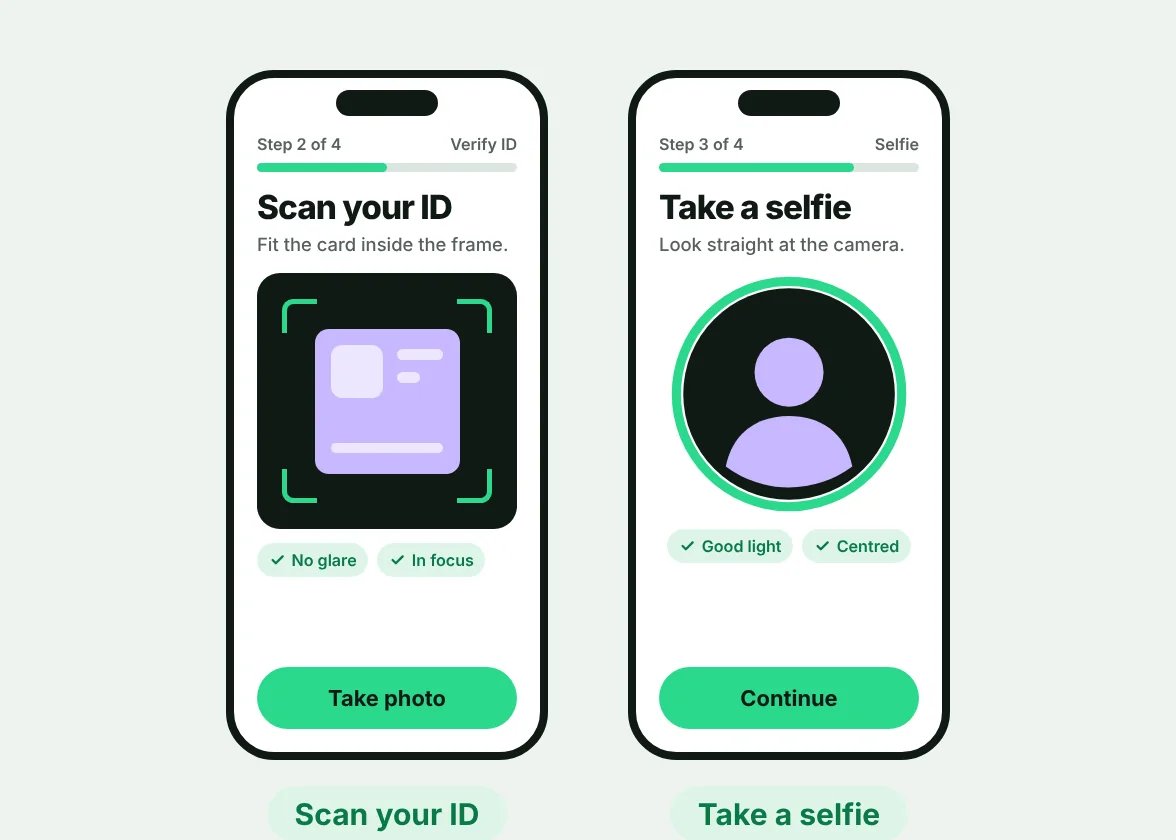
- Show the step count, for example "Step 2 of 4"
- Let users pick the document type and show a sample of a good photo
- Ask only for the data you need, and say why you need it
Permissions and handoffs
Principle: Give a reason, ask in context, and make a refusal reversible. People are more likely to grant access when they are told why.
- Explain why you need the camera before the browser asks: "[Product] would like to use your camera so that you can scan your ID."
- Ask at the moment the user is about to take the photo, not on the first screen
- If permission is denied, say what is missing and link to the settings so it can be turned on
- If a third-party page or SDK opens, keep the look and wording consistent and tell users it is a trusted step
During capture
Principle: Error prevention: stop the bad photo before it happens, instead of reporting it afterwards.
- Show a framing guide that matches the shape of the document
- Give live hints about light, glare and blur
- Capture automatically when the document is in focus, with a manual button as a backup
- Keep the camera view large and keep text out of it
- Offer a file upload for people who cannot use the camera
After capture
Principle: Visibility of system status: use a looping animation for short waits, percent done from about 10 seconds, and a status tracker for minutes or hours.
- Show a preview with "Retake" and "Use this photo"
- Check the photo on the device for blur, glare and cut-off edges, and say what failed
- Show a clear "checking" state with an estimated wait
- Save progress, so users can leave and come back
- Show success only when the result is final, and say "pending" until then
- Say what happens next, and how users will hear the result
When it fails
Principle: Help users recognize, diagnose and recover from errors: make the message easy to notice, write it in plain language, name the specific problem, do not blame the user and keep what they typed.
- Say what went wrong in plain words
- Say how to fix it, and show an example
- Put the message next to what failed, and do not rely on color alone
- Let users retry without starting over
- After two failed tries, offer another way: another document, an upload or a person
- Keep raw error codes out of the user's view and log them for your team
Selfie and liveness
Principle: User control and flexibility: ask for as little as you need and leave people another route.
- Ask for as few actions as your risk model allows
- Explain each action in one line before the camera starts
- Show a face outline and a live hint such as "Look straight ahead"
- Test the prompts with glasses, head coverings and low light
- Offer another way for people who cannot do an action
Accessibility
Principle: Face checks reject people with disabilities more often, and a passport fallback fails people whose hands shake. Do not leave anyone without a route.
- Test with people who have disabilities, not only with your own team
- Offer another route if a face check or a steady hand is required
- Pair every status color with an icon and words
- Keep text readable on small phones and in bright light
Related
Find out where your users drop off.
Start with a 5-day onboarding audit. You'll get a clear map of what's losing users and what to fix first.
Onboarding & KYC audit
- Flow review and drop-off map
- Prioritized fix list
- 30-minute walkthrough call